

There are certain types of ‘Corrections’ on TDS / TCS Returns that may be done directly on TRACES web portal instead of going through filing of the ‘Correction Return’ These include ‘Add Challan’ and ‘PAN Correction’.
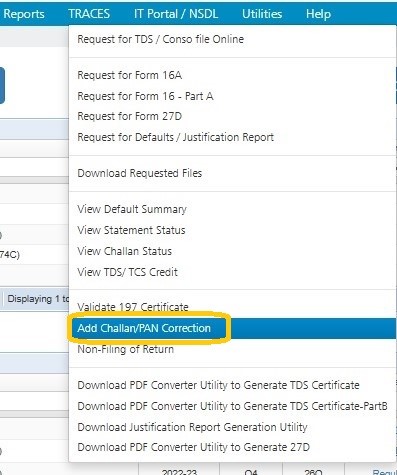
Click on ‘TRACES > Add Challan / PAN Correction’
The following screen will get displayed :
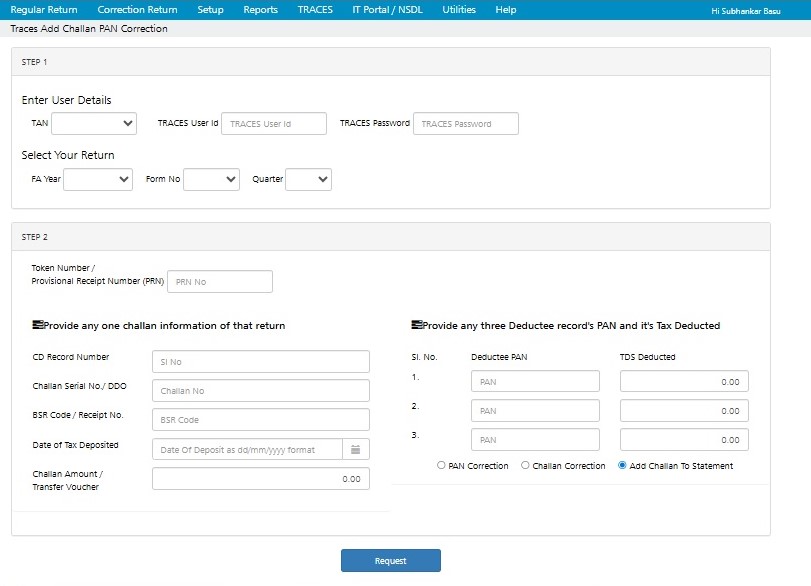
Enter User Details : Enter the Login details of the user i.e. TAN, TRACES User Id and Password
Select Your Return : Select the Financial Year, Form No. and Quarter of the Return which needs to be downloaded.
This information will be automatically placed, if available in the Regular Return as recorded in the system. In case it is missing, this needs to be manually entered.
Provisional Receipt No. : Enter Token Number of the Regular Return of that quarter
Provide 1 Challan Information of the Return: Enter the Serial Number, Challan Number, BSR Code, Date of Deposit and Tax Deposited of any one Challan of the selected Return.
Provide any 3 Deductee Record’s PAN and it’s Tax Deducted : Enter the PAN and the amount of Tax deducted of any three Deductees from the Challan whose details have been provided.
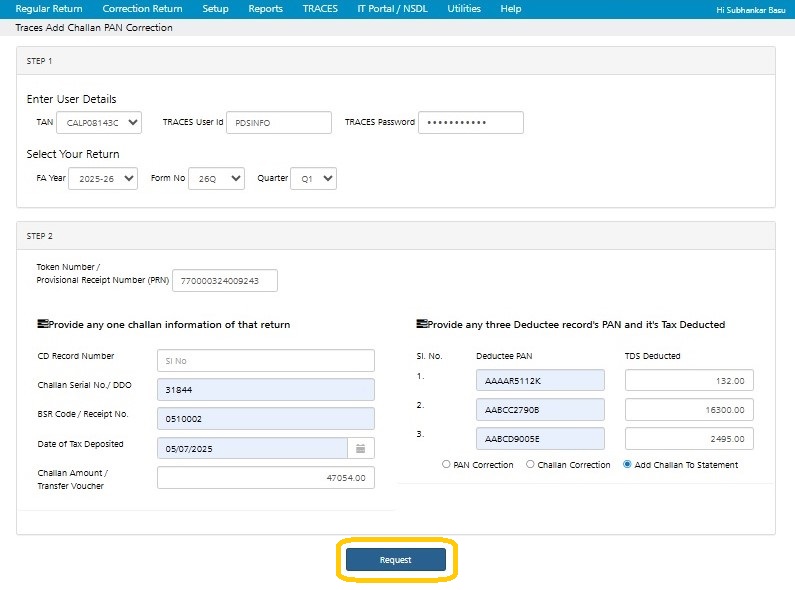
To add a Challan click on ‘Add Challan to Statement’ :
Click on ‘Request’
This will take you to the TRACES interface. Please follow the instructions and add the necessary Challan(s) to Statement.
PAN Correction : Select ‘PAN correction’ and click on ‘Request’ . This will take you to the TRACES interface where the PAN corrections can be done. Please follow the instructions and make the necessary PAN corrections.
Challan Correction : Select ‘Challan Correction’ and click on ‘Request’ . This will take you to the TRACES interface where the Challan corrections can be done. Please follow the instructions and make the necessary Challan corrections.
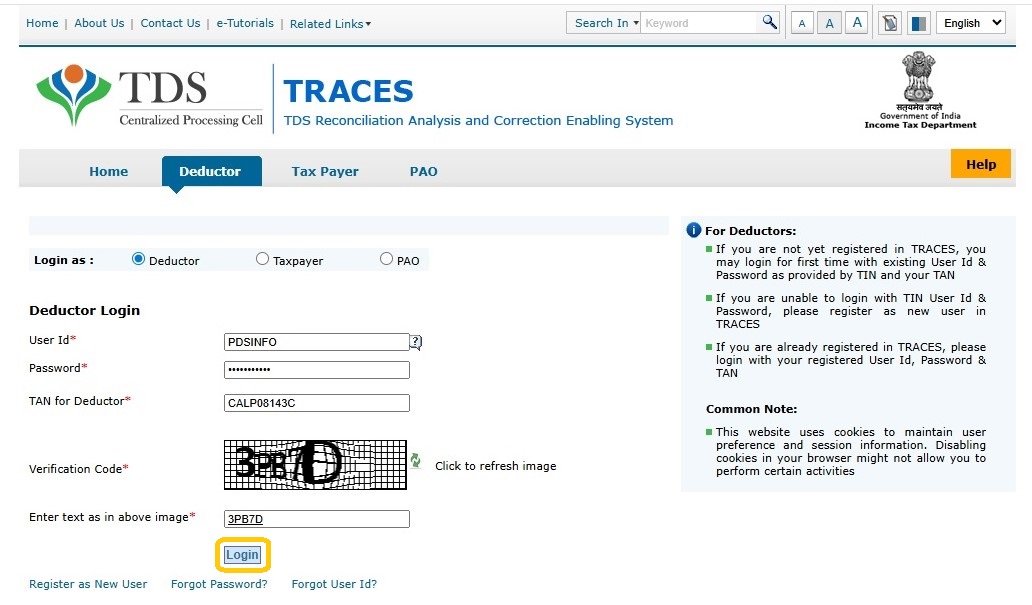
Enter the TRACES Credentials.
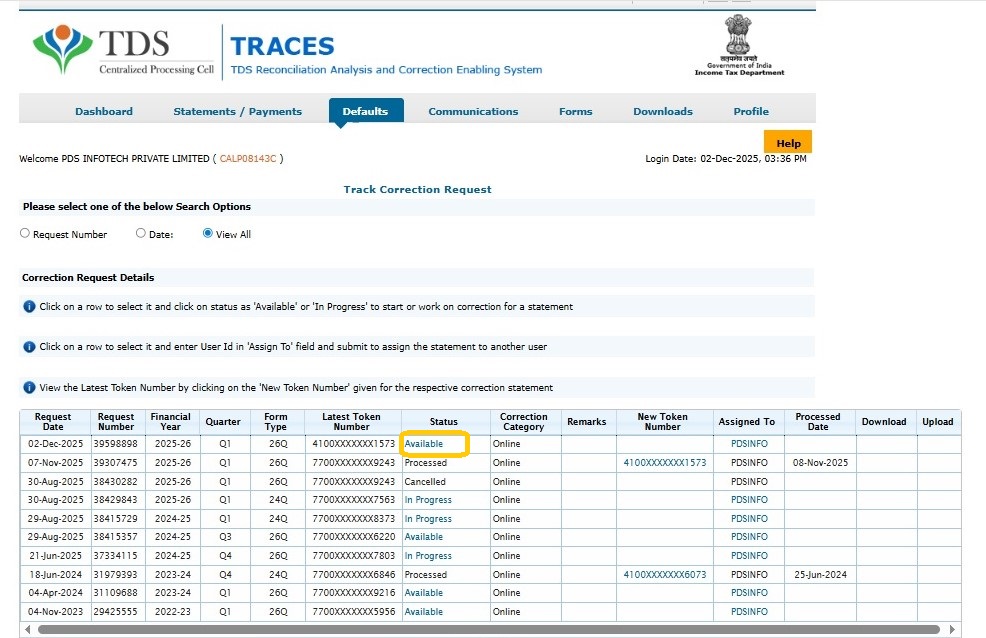
Select the relevant Return for which the status is ‘Available’
The following screen will get displayed:
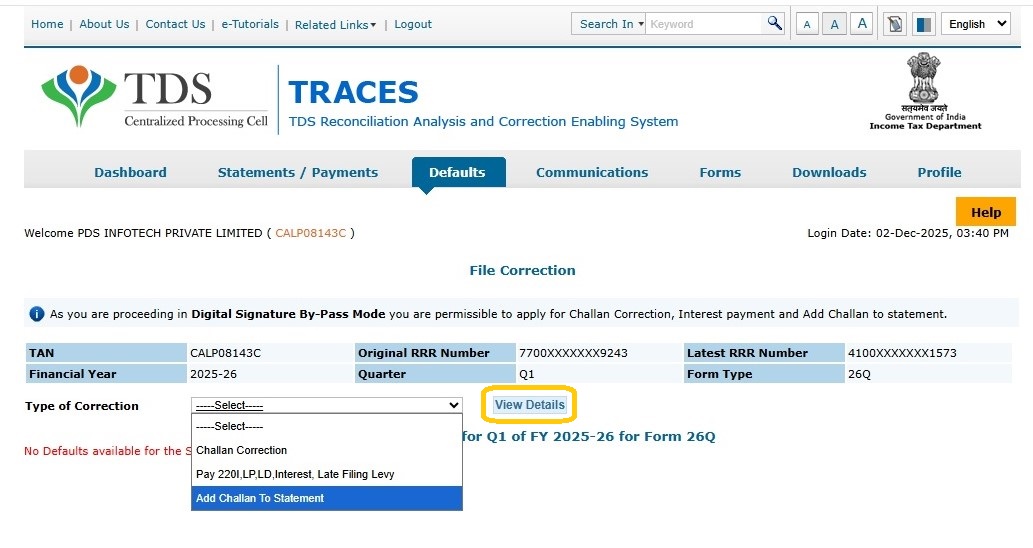
Type of Correction : Select ‘Add Challan To Statement’
Click on ‘View Details’ :
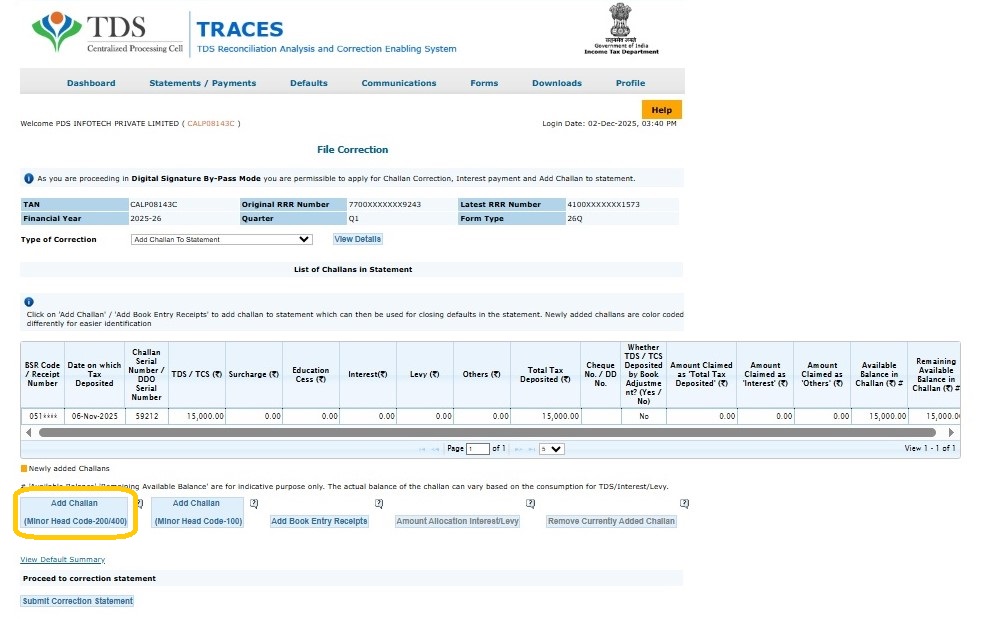
Click on ‘Add Challan (Minor Head 200/400)’
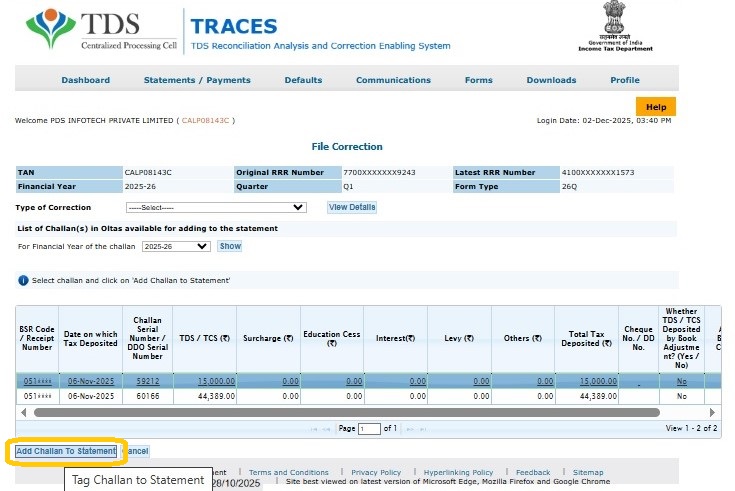
Once the challan is added it has to be attached to the Statement. In order to do this click on ‘Add Challan To Statement’.
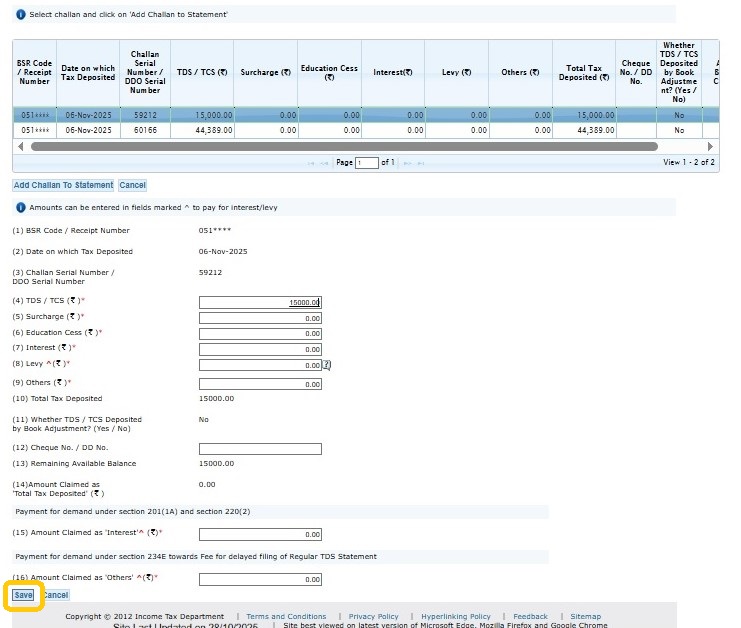
Click on ‘Save’
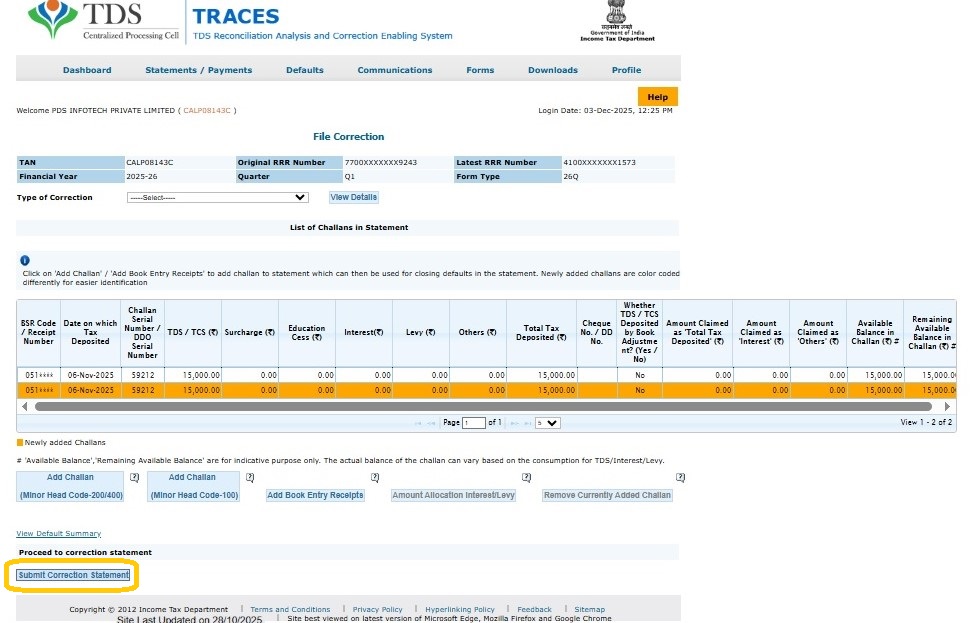
Click on ‘Submit Correction Statement’
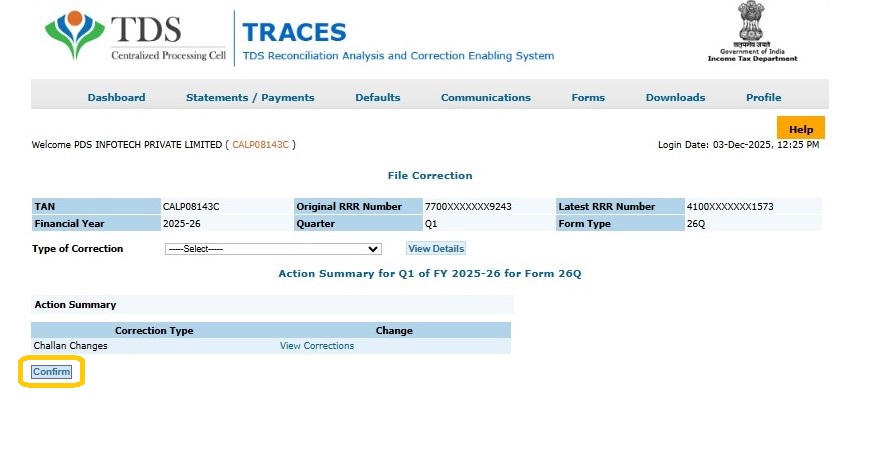
Click on ‘Confirm’
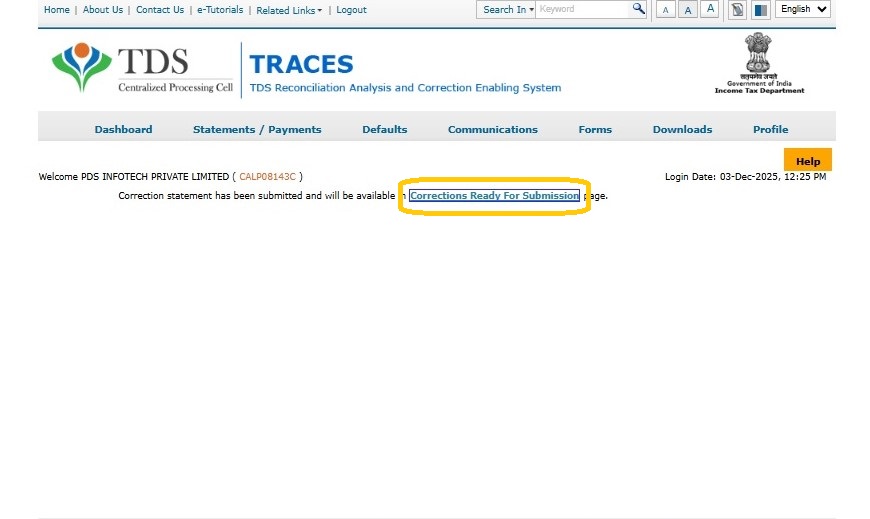
Click on ‘Correction Ready for Submission’
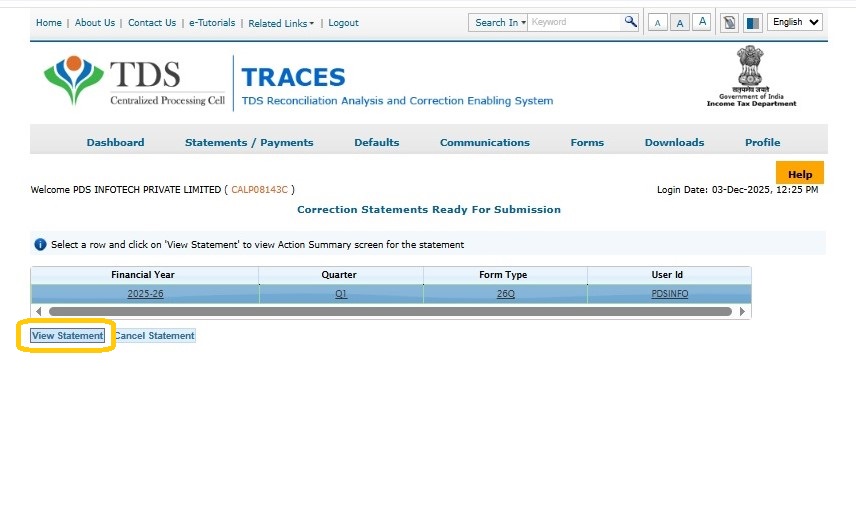
Click on ‘View Statement’
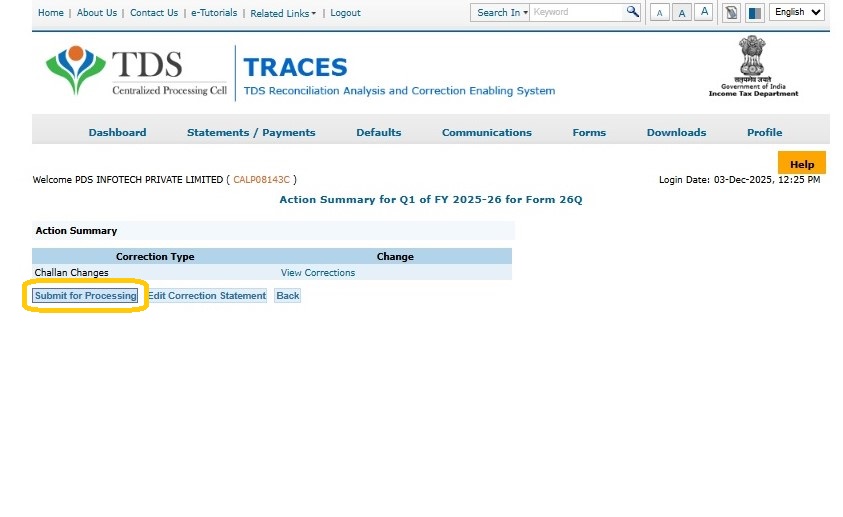
Click on ‘Submit for Processing’
Need more help with this?
EnterpriseTDS - Support